

docs7 deploy. For GitHub sites, Docs7 reads the configured documentation folder whenever it builds.
The folder must contain docs.json or mint.json. It can also contain MDX pages, assets, snippets, OpenAPI files, and any other files referenced by the documentation.
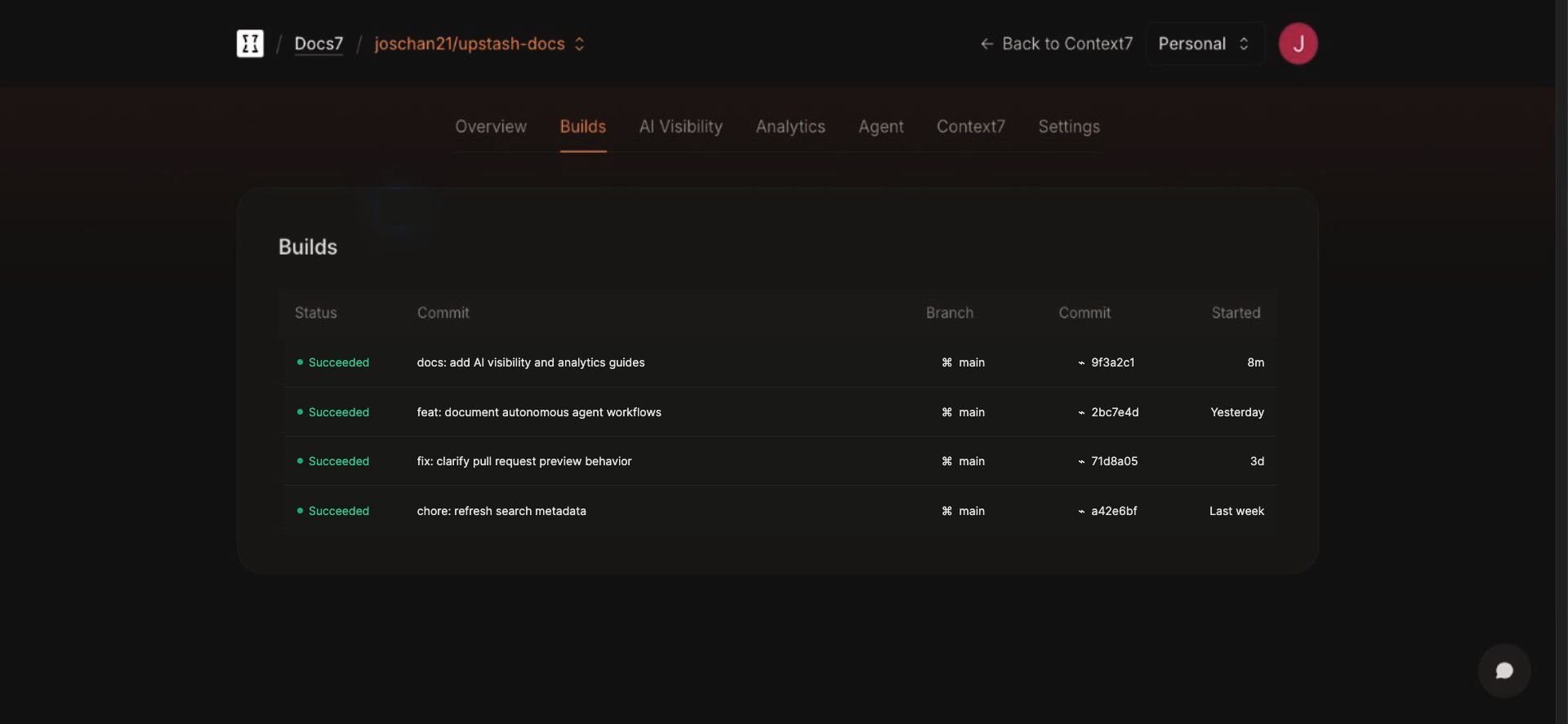
The Builds view records the status, branch, commit, and start time for each deployment.
Build settings
For a GitHub site, open Docs7, choose a site, then open Settings.
Branch and docs path changes take effect on the next deployment. You can also serve the site from its own domain or from a path such as
example.com/docs.
Production builds
Docs7 starts a production build when:- You publish a site for the first time.
- You push a commit to the production branch.
- You click Redeploy in Docs7.
- You run
docs7 deployfor a CLI site.
A push to another branch does not create a preview by itself. Preview builds come from pull requests or a manual preview deployment.
Pull request previews
Docs7 creates or updates a preview when a pull request:- comes from a branch in the connected repository
- uses a head branch other than the site’s production branch
- changes a file inside the configured docs path
- is opened, reopened, or receives a new commit
X-Robots-Tag: noindex, so temporary URLs do not compete with the production site in search results.
You can also create a preview for a selected branch manually. Open a preview build to redeploy it or delete its live preview.
Inspect a build
Open Builds, then select a row. GitHub builds record the branch, commit, trigger, status, and commit message. For CLI sites, open the overview link from the command and select a deployment. These builds show a CLI source instead of a Git branch or commit. The detail view contains:- Log for renderer and deployment output
- Files changed for pull request builds
- Health for page errors, broken internal links, unknown components, source warnings, and deployment failures
Build locally
Use the CLI before you push:--port to change the port and --host to bind another address. The first run downloads the Docs7 renderer and caches it for later previews.
To publish local files, run docs7 login, then docs7 deploy. See the CLI reference for production and preview deployments.