

Authorization header:
x-api-key, context7-api-key, or context7_api_key header.
A key belongs to the user who created it and has that user’s role (admin or member). Keys have no scopes and do not expire. To stop a key from working, revoke it.
A request with an invalid or revoked key gets 401. It is not treated as an anonymous request.
OAuth for MCP clients
MCP clients can also sign in with OAuth instead of a personal key. The client gets a short-lived access token (ctx7oa-...) for the user who approved it, and sends it as Authorization: Bearer <token>. An OAuth access token works only on /mcp and has the role and library access of its user. No other endpoint accepts it as a credential. See OAuth Sign-In for MCP Clients.
When OAuth is on, a 401 from /mcp carries a WWW-Authenticate header with resource_metadata="...", which points clients to the sign-in flow. With OAuth on, a browser session token sent as a bearer token is not accepted on /mcp; the dashboard session cookie still is.
Creating an API Key
1
Open Personal settings
Open the account menu in the admin dashboard, choose Personal settings, and click Create API key in the API keys card.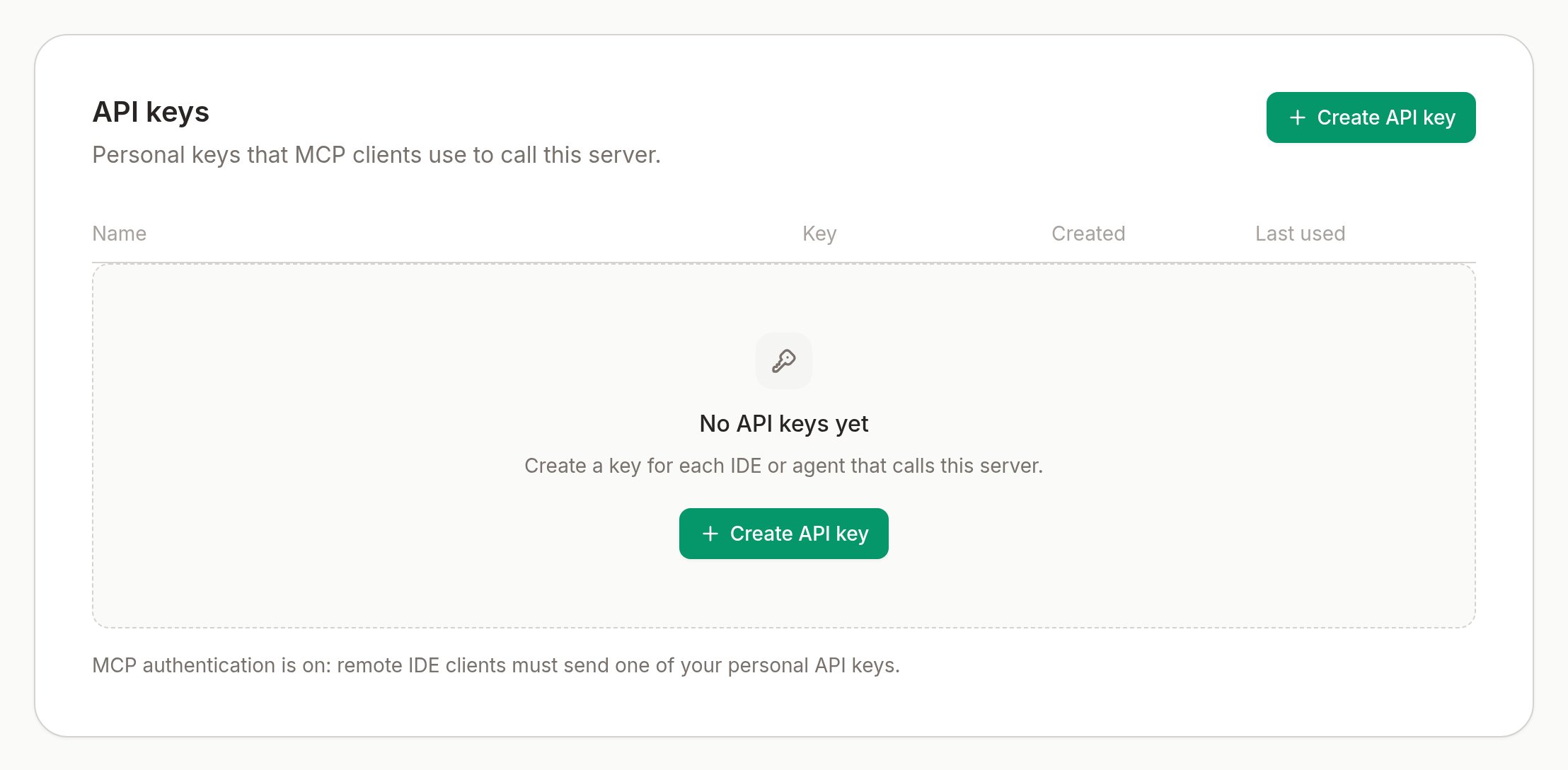
2
Name the key
Give the key a descriptive name so you know which client or service is using it (e.g. 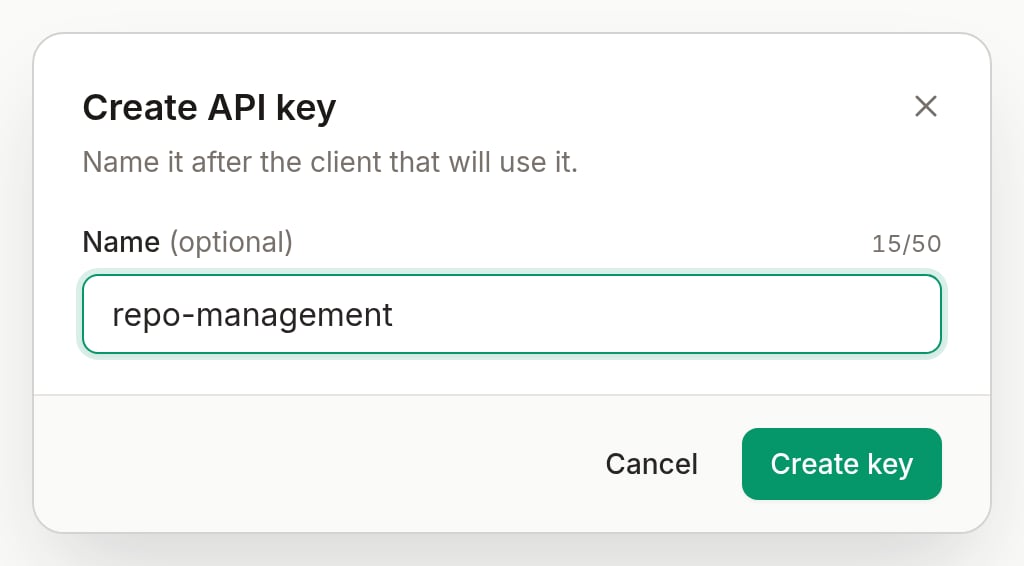
CI pipeline, Cursor).3
Copy the key
Copy the full key value before closing the dialog. It is only shown once.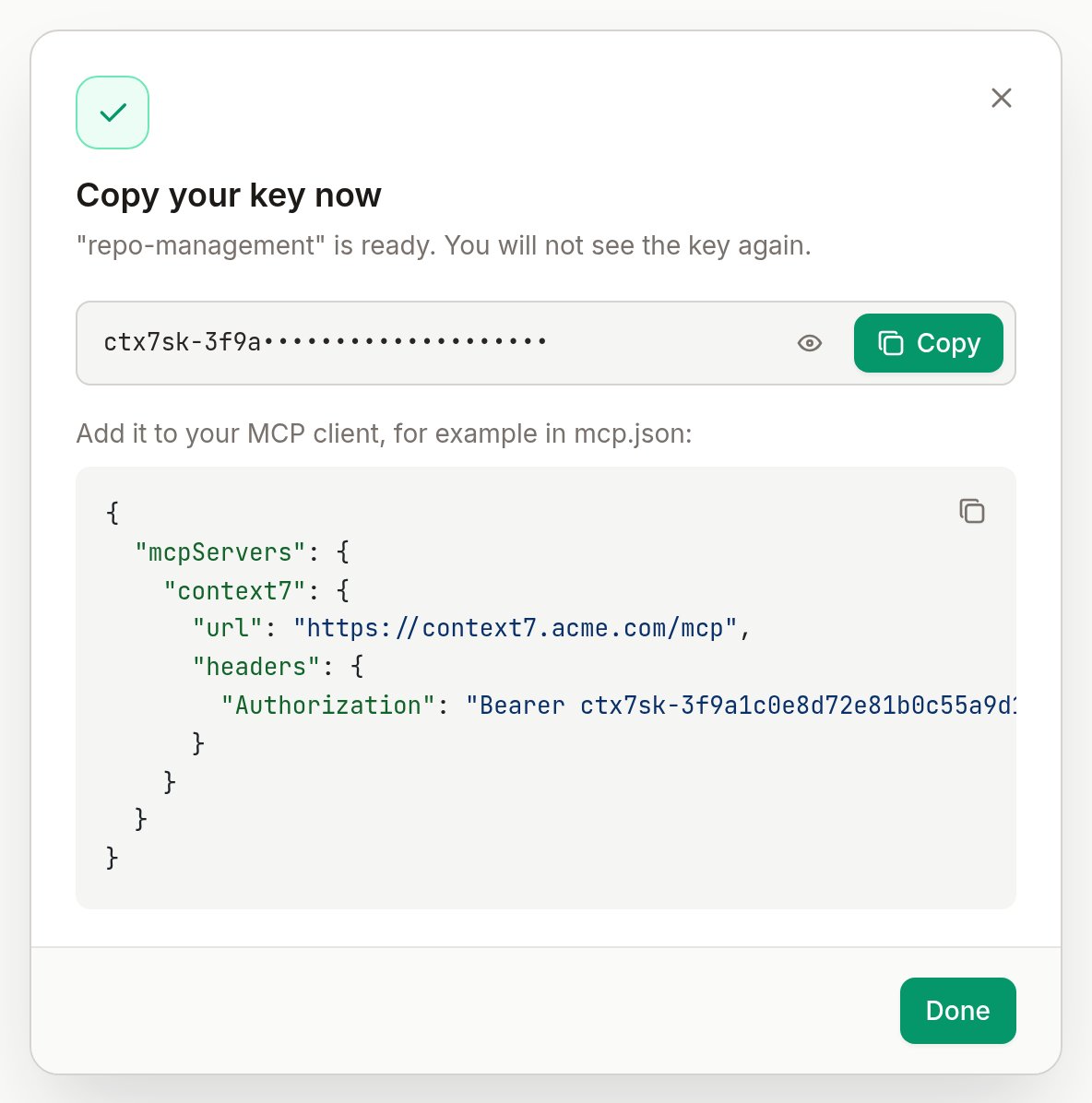
Revoking a Key
Go to Personal settings > API keys and click the delete icon next to the key. Revocation is immediate and cannot be undone. Update any integrations using the key before revoking.Roles
A personal API key acts with the role of its owner:
In OAuth only mode with MCP authentication on,
/mcp refuses personal API keys. /api/v2 accepts them in every mode.
Settings, user management, and other admin routes need an admin signed in to the dashboard. They do not accept API keys.
Default credentials on a fresh install are admin / admin. Change them immediately from Personal settings > Password > Change password.
Non-admin permissions
Certain operations can be opened to anonymous callers (no session and no API key). Configure them in the Non-admin permissions card under Workspace Settings › Authorization:
These switches do not limit signed-in users. Members and their API keys can always parse and refresh, except Notion and Google Drive libraries, which only admins refresh. To re-parse or replace an existing library, a member needs read access to it.
The parse and refresh switches do not cover source code indexing or CodeDocs generation. A parse or refresh with source code indexing, and CodeDocs generation, always need a session or a personal API key.
The delete switch also covers cancelling a parse. When it is on, members can delete and cancel too. The support bundle switch works the same way for downloads.
Earlier versions allowed anonymous parse and refresh by default.
/mcp/api/v2/*, including/api/v2/libs/searchand/api/v2/contextGET /api/projectsandGET /api/projects/{name}GET /api/projects/{name}/logsandGET /api/projects/{name}/searchGET /api/queueGET /api/parse-status