> ## Documentation Index
> Fetch the complete documentation index at: https://context7.com/docs/llms.txt
> Use this file to discover all available pages before exploring further.
# Manage Your Teamspace
> Invite members and manage teamspace permissions
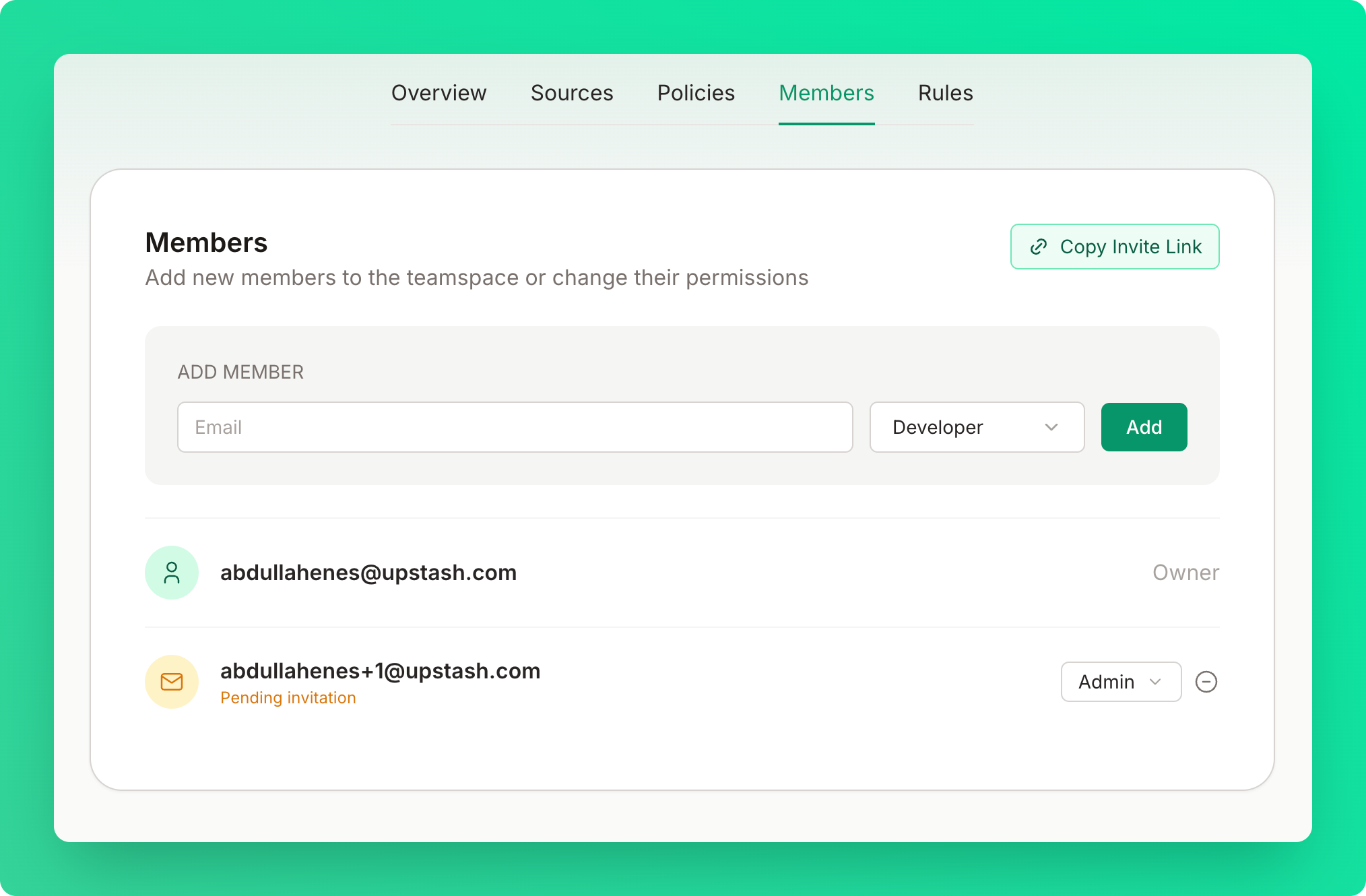
Add team members, assign roles, and manage access to your Context7 dashboard from the [members tab](https://context7.com/dashboard?tab=members).
 ## Creating a Teamspace
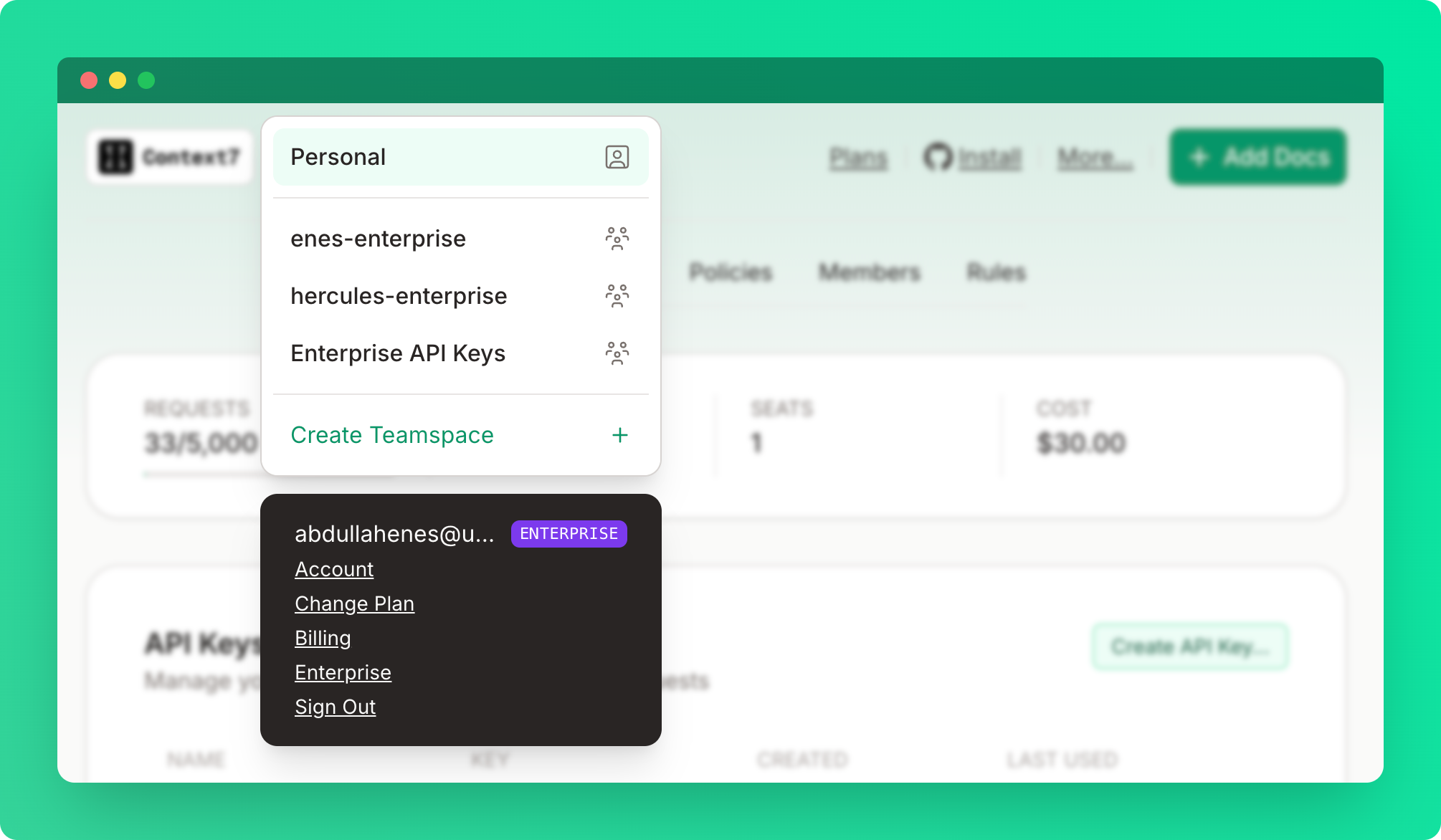 Click **Create a teamspace** from the top-left dropdown.
Enter a teamspace name.
You must have a Pro or Enterprise plan to create a teamspace. Only the teamspace owner needs a paid plan — invited members don't need their own subscription. Once added, all members automatically benefit from the team's Pro or Enterprise limits.
## Roles
| Permission | Owner | Admin | Developer |
| ---------------------- | ----- | ----- | --------- |
| View dashboard | ✓ | ✓ | ✓ |
| Create API keys | ✓ | ✓ | ✓ |
| Manage team members | ✓ | ✓ | ✗ |
| Manage library access | ✓ | ✓ | ✗ |
| Manage private sources | ✓ | ✓ | ✗ |
| Rename teamspace | ✓ | ✗ | ✗ |
| Delete teamspace | ✓ | ✗ | ✗ |
## Inviting Members
Enter the email address of the person you want to invite.
Choose **Developer** or **Admin**.
Click **Add**. The member receives an invitation email and is automatically added to the teamspace once they sign in.
The invitation will remain pending until they sign in.
## Teamspace Settings
If you are the owner of the teamspace, you can rename or delete the teamspace under the overview tab.
Click **Create a teamspace** from the top-left dropdown.
Enter a teamspace name.
You must have a Pro or Enterprise plan to create a teamspace. Only the teamspace owner needs a paid plan — invited members don't need their own subscription. Once added, all members automatically benefit from the team's Pro or Enterprise limits.
## Roles
| Permission | Owner | Admin | Developer |
| ---------------------- | ----- | ----- | --------- |
| View dashboard | ✓ | ✓ | ✓ |
| Create API keys | ✓ | ✓ | ✓ |
| Manage team members | ✓ | ✓ | ✗ |
| Manage library access | ✓ | ✓ | ✗ |
| Manage private sources | ✓ | ✓ | ✗ |
| Rename teamspace | ✓ | ✗ | ✗ |
| Delete teamspace | ✓ | ✗ | ✗ |
## Inviting Members
Enter the email address of the person you want to invite.
Choose **Developer** or **Admin**.
Click **Add**. The member receives an invitation email and is automatically added to the teamspace once they sign in.
The invitation will remain pending until they sign in.
## Teamspace Settings
If you are the owner of the teamspace, you can rename or delete the teamspace under the overview tab.
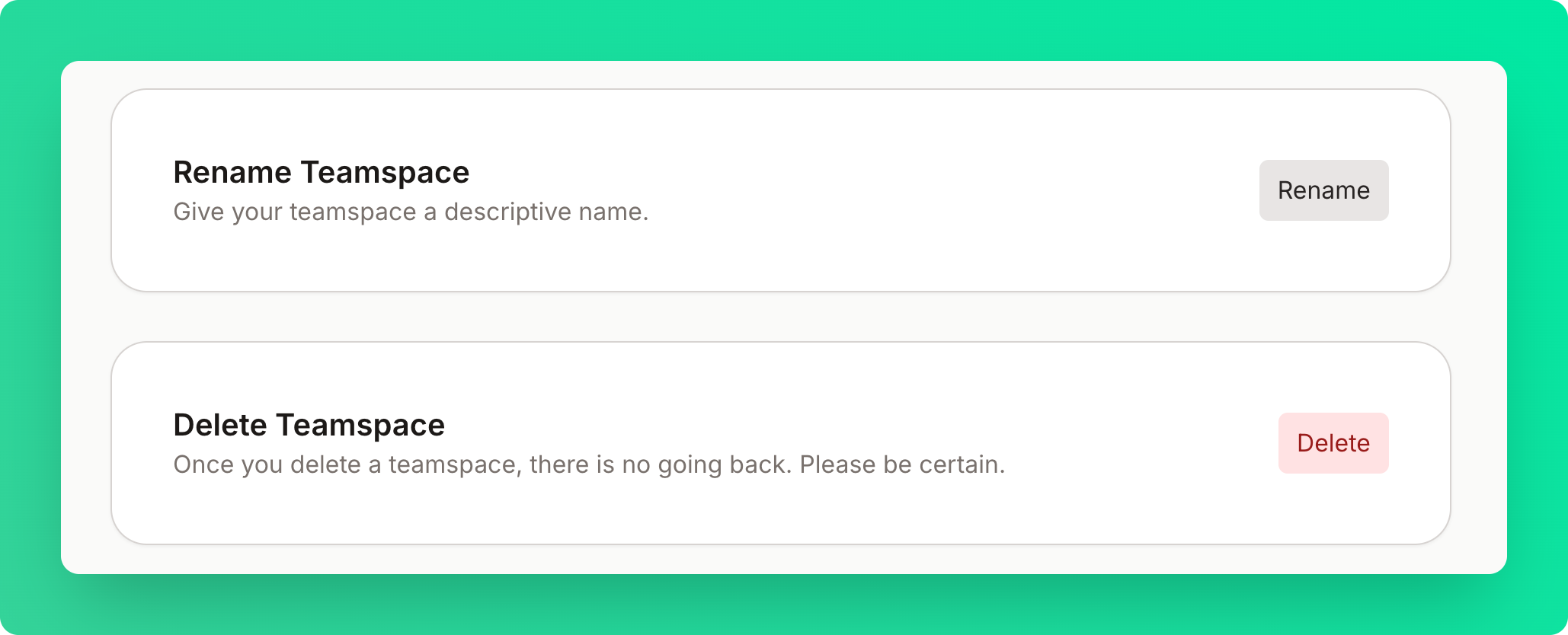 Deleting a teamspace is permanent. All members lose access immediately.
## Limits
| Plan | Max Members |
| ---------- | ----------------- |
| Free | 1 (personal only) |
| Pro | 10 |
| Enterprise | Unlimited |
Deleting a teamspace is permanent. All members lose access immediately.
## Limits
| Plan | Max Members |
| ---------- | ----------------- |
| Free | 1 (personal only) |
| Pro | 10 |
| Enterprise | Unlimited |