> ## Documentation Index
> Fetch the complete documentation index at: https://context7.com/docs/llms.txt
> Use this file to discover all available pages before exploring further.
# Add Private Sources
> Add and manage private source documentation
Add private sources to Context7 to make your internal documentation available to AI coding assistants. You can add sources from GitHub, GitLab, Bitbucket, other Git providers, Confluence, and OpenAPI specifications.
 ## Adding Private Sources
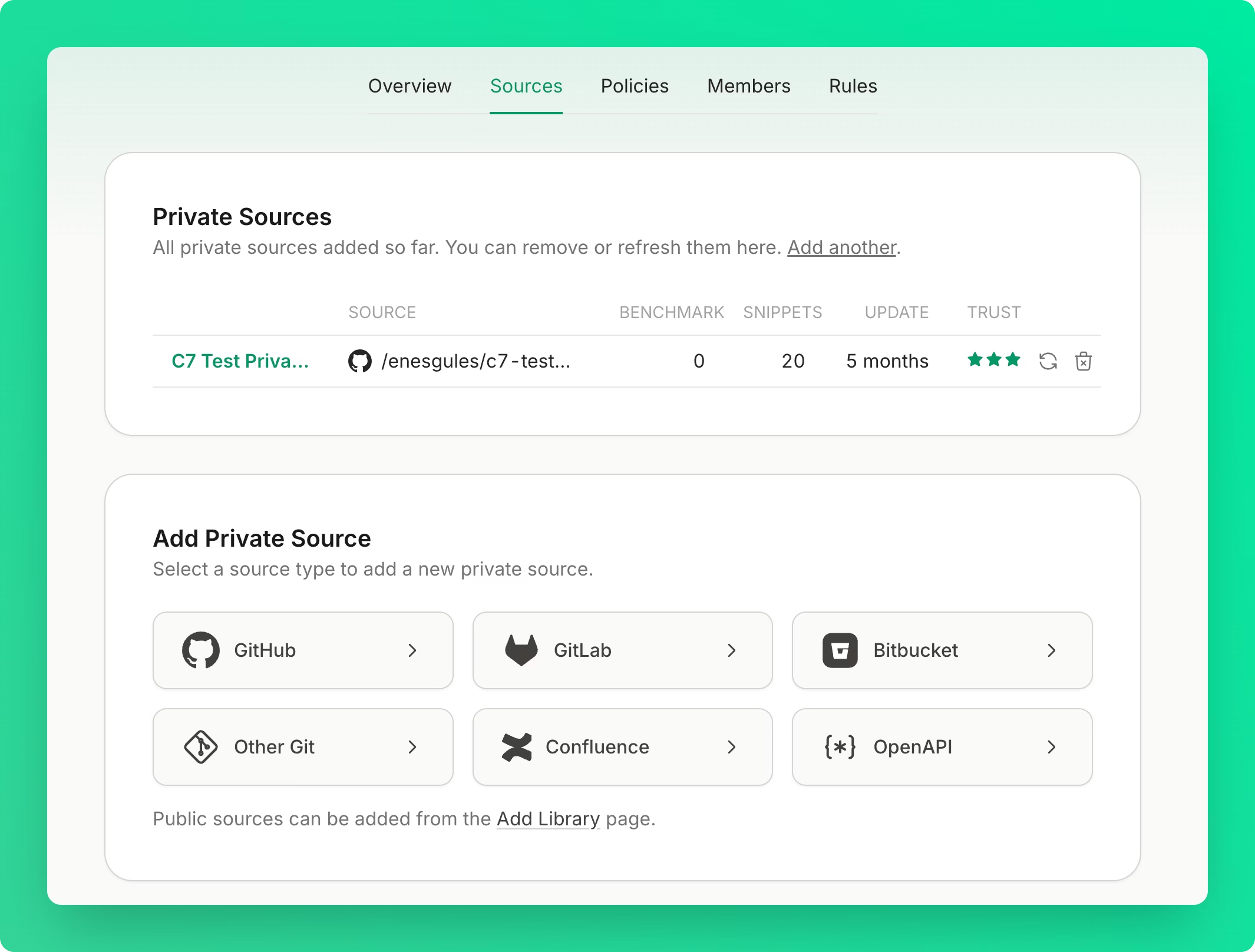
Go to your teamspace's **Sources** tab.
Click **Add another** to open the source type selector.
* **GitHub** — connect your GitHub account and select a repository
* **GitLab** — connect your GitLab account and select a project
* **Bitbucket** — connect your Bitbucket account and select a repository
* **Other Git** — add any Git repository by URL
* **Confluence** — connect your Confluence workspace
* **OpenAPI** — add an OpenAPI specification
Authorize Context7 to access your source (if required).
For repositories with little or no written documentation, check **Generate docs** to have Context7 generate documentation from the source code. Also available as the `generateDocs` flag in the [API](/api-guide).
Submit the source for parsing.
You must have a Pro or Enterprise plan to add private sources. Public sources can be added from the [Add Library](https://context7.com/add-library) page.
## Source Management
### Refreshing Documentation
Keep your private documentation up to date:
1. **Click the refresh icon** next to the source
2. Context7 re-parses the source
3. **You're only charged for changed content** — cached pages are free
**When to refresh**:
* After major documentation updates
* After releasing new features
* When you notice outdated information
Refresh private sources only after significant documentation changes to minimize costs.
### Removing Sources
Click the trash icon next to the source.
Confirm in the modal. The source documentation becomes unavailable immediately.
This action is permanent. The source will no longer be accessible via the API.
## Permissions
Access to private source management is restricted by role. Only Owners and Admins can add, refresh, or remove private sources. Developers can view source documentation but cannot manage sources.
See [Teamspace Management](/howto/teamspace#roles) for the complete permissions table.
## Configuration
### Using `context7.json`
Add a `context7.json` file to your repository root for better control over parsing:
```json theme={null}
{
"$schema": "https://context7.com/schema/context7.json",
"projectTitle": "Your Project Name",
"description": "Brief description of your project",
"folders": ["docs", "guides"],
"excludeFolders": ["tests", "dist", "node_modules"],
"excludeFiles": ["CHANGELOG.md"],
"rules": ["Always validate user input", "Use TypeScript strict mode"]
}
```
See the [Library Owners](/library-owners) page for complete configuration options.
## Adding Private Sources
Go to your teamspace's **Sources** tab.
Click **Add another** to open the source type selector.
* **GitHub** — connect your GitHub account and select a repository
* **GitLab** — connect your GitLab account and select a project
* **Bitbucket** — connect your Bitbucket account and select a repository
* **Other Git** — add any Git repository by URL
* **Confluence** — connect your Confluence workspace
* **OpenAPI** — add an OpenAPI specification
Authorize Context7 to access your source (if required).
For repositories with little or no written documentation, check **Generate docs** to have Context7 generate documentation from the source code. Also available as the `generateDocs` flag in the [API](/api-guide).
Submit the source for parsing.
You must have a Pro or Enterprise plan to add private sources. Public sources can be added from the [Add Library](https://context7.com/add-library) page.
## Source Management
### Refreshing Documentation
Keep your private documentation up to date:
1. **Click the refresh icon** next to the source
2. Context7 re-parses the source
3. **You're only charged for changed content** — cached pages are free
**When to refresh**:
* After major documentation updates
* After releasing new features
* When you notice outdated information
Refresh private sources only after significant documentation changes to minimize costs.
### Removing Sources
Click the trash icon next to the source.
Confirm in the modal. The source documentation becomes unavailable immediately.
This action is permanent. The source will no longer be accessible via the API.
## Permissions
Access to private source management is restricted by role. Only Owners and Admins can add, refresh, or remove private sources. Developers can view source documentation but cannot manage sources.
See [Teamspace Management](/howto/teamspace#roles) for the complete permissions table.
## Configuration
### Using `context7.json`
Add a `context7.json` file to your repository root for better control over parsing:
```json theme={null}
{
"$schema": "https://context7.com/schema/context7.json",
"projectTitle": "Your Project Name",
"description": "Brief description of your project",
"folders": ["docs", "guides"],
"excludeFolders": ["tests", "dist", "node_modules"],
"excludeFiles": ["CHANGELOG.md"],
"rules": ["Always validate user input", "Use TypeScript strict mode"]
}
```
See the [Library Owners](/library-owners) page for complete configuration options.