> ## Documentation Index
> Fetch the complete documentation index at: https://context7.com/docs/llms.txt
> Use this file to discover all available pages before exploring further.
# GitHub Integration
> Connect Context7 to GitHub with a GitHub App or a personal access token for private repository access and push webhooks
Context7 needs access to your GitHub repositories to clone and index them. You can connect GitHub in two ways: a **GitHub App** (recommended) or a **personal access token**. The GitHub App additionally delivers push webhooks, which power push-triggered [GitOps](/enterprise/gitops) syncs.
Both are configured under **Settings → Integrations**.
Running GitHub Enterprise Server instead of github.com? Point Context7 at your server first. See [GitHub Enterprise Server](#github-enterprise-server).
## GitHub App
The GitHub App is the recommended option. It gives Context7 fine-grained access to only the repositories you select, rotates short-lived access tokens automatically, and delivers webhooks for push-triggered GitOps syncs.
Connecting the App is two steps: first create the App, then install it on your repositories.
Go to **Settings → Integrations** and choose **Set up GitHub App**. Context7 generates a pre-filled App manifest and sends you to GitHub to create the App in one click. You are redirected back and Context7 stores everything it needs automatically: the App ID, private key, client ID and secret, and the webhook secret.
After it is created, install the App on the account or organization that owns your repositories, and grant it access to the repositories you want to index (including your GitOps manifest repository, if you use GitOps).
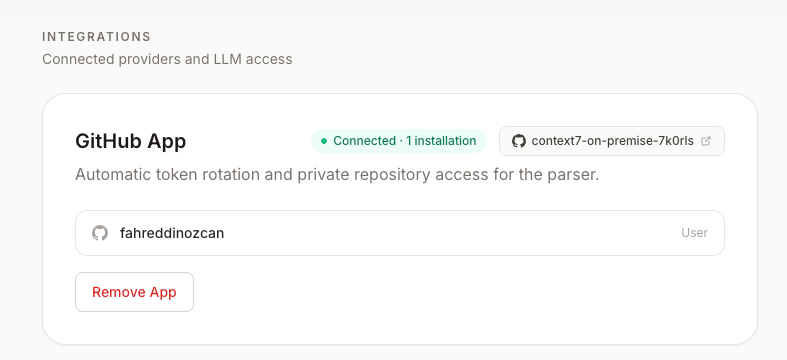
Once both steps are done, the GitHub App card shows the connected App and its installation:
 ### Verify the App configuration
The setup flow configures everything below automatically, so a newly created App is ready to use. Use this section to confirm the App, or to fix an App you connected before GitOps existed (it will be missing the push event; see [Webhooks](#webhooks)). Open the App at `github.com/settings/apps`.
| Setting | Required value |
| ------------------------------- | ----------------------------------------- |
| Repository permission: Contents | Read-only |
| Repository permission: Metadata | Read-only (mandatory) |
| Subscribed events | Push |
| Webhook | Active |
| Webhook URL | `https:///api/github/webhook` |
| Webhook secret | Set |
| Callback URL | `https:///api/github/callback` |
| Setup URL | `https:///api/github/setup` |
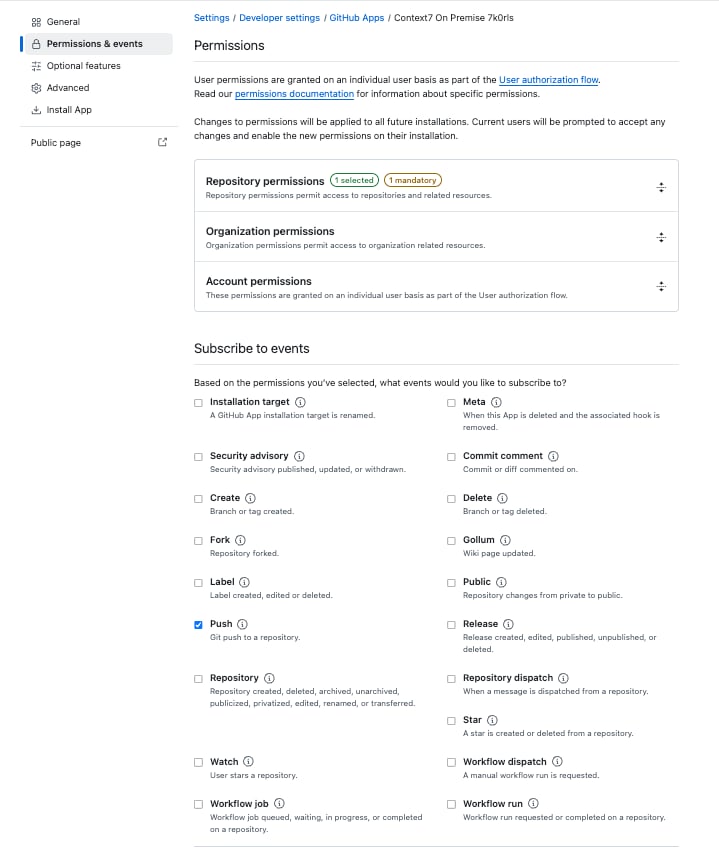
Under **Permissions & events**, the repository permissions are granted and the **Push** event is subscribed:
### Verify the App configuration
The setup flow configures everything below automatically, so a newly created App is ready to use. Use this section to confirm the App, or to fix an App you connected before GitOps existed (it will be missing the push event; see [Webhooks](#webhooks)). Open the App at `github.com/settings/apps`.
| Setting | Required value |
| ------------------------------- | ----------------------------------------- |
| Repository permission: Contents | Read-only |
| Repository permission: Metadata | Read-only (mandatory) |
| Subscribed events | Push |
| Webhook | Active |
| Webhook URL | `https:///api/github/webhook` |
| Webhook secret | Set |
| Callback URL | `https:///api/github/callback` |
| Setup URL | `https:///api/github/setup` |
Under **Permissions & events**, the repository permissions are granted and the **Push** event is subscribed:
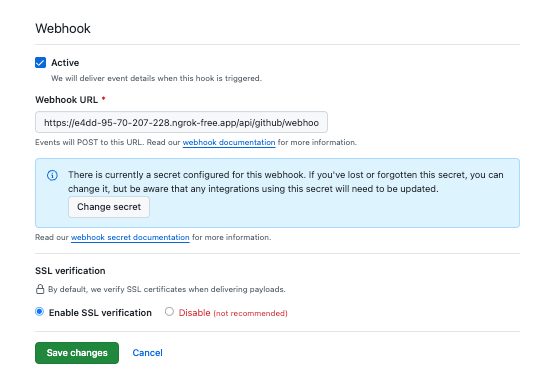
 Under **Webhook**, it is active and points at your instance with a secret configured:
 ## Personal access token
As a simpler alternative, add a GitHub personal access token under **Settings → Integrations**. Use a token with the `repo` scope for private repository access.
## Personal access token
As a simpler alternative, add a GitHub personal access token under **Settings → Integrations**. Use a token with the `repo` scope for private repository access.
 A personal access token can clone and index repositories, but it **cannot receive webhooks**. With a token only, push-triggered GitOps syncs are unavailable; use the GitOps sync schedule or trigger syncs from CI instead.
## GitHub Enterprise Server
Context7 works with GitHub Enterprise Server, not only github.com. Set your server host **before** you create the GitHub App or add a token, so the App is created on your own server instead of github.com.
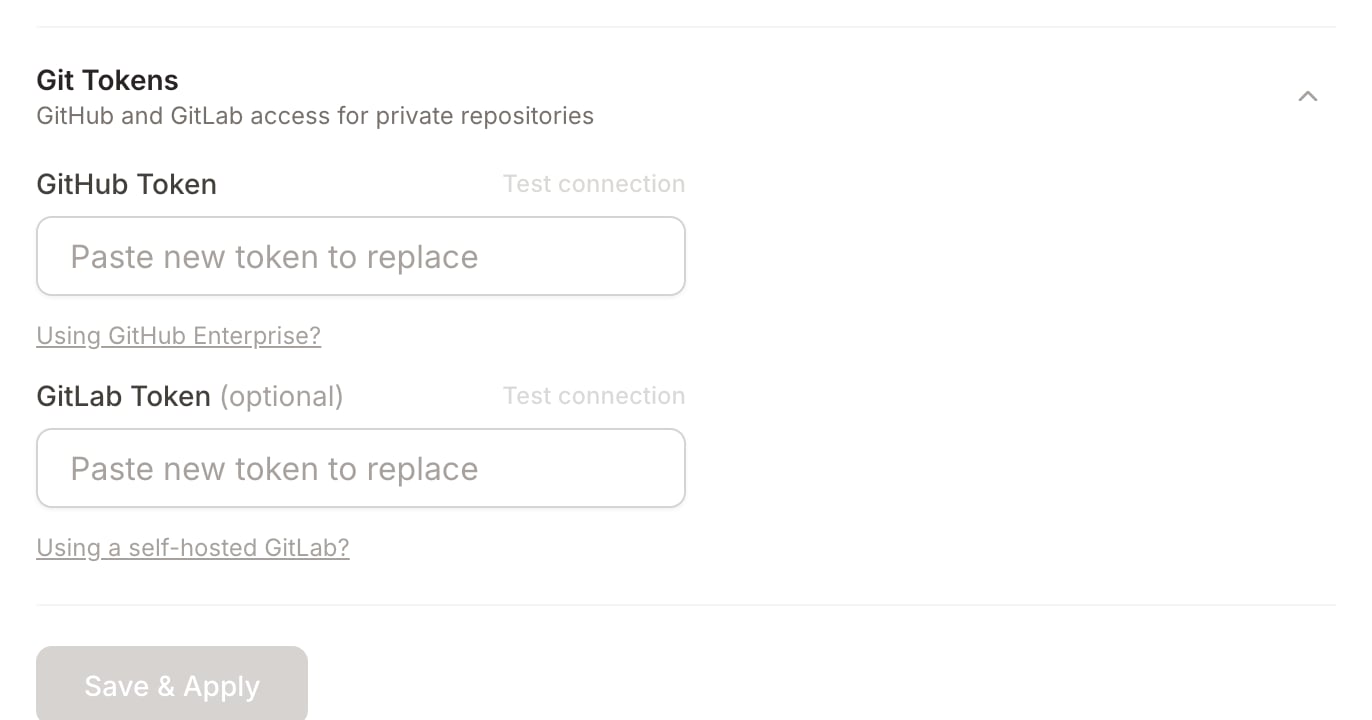
Open **Settings → Integrations → Git Tokens** and select **Using GitHub Enterprise?**. Enter your server host, for example `github.your-company.com` (no `https://`), then choose **Save & Apply**.
Now follow [GitHub App](#github-app) or [Personal access token](#personal-access-token) above. The App manifest, installation, sign-in, and all API calls target your server. Before you create the App, the GitHub App card shows the server it will use, so you can confirm it is not github.com.
For this to work, Context7 must reach your server's API at `https:///api/v3`, and your server must reach Context7 at its webhook URL for push delivery.
Prefer to set this at deploy time, for example as part of a disaster recovery rebuild? Set the `GITHUB_URL` environment variable to your server URL, such as `https://github.your-company.com`. A host saved in the UI takes precedence over the environment variable when both are set.
## Webhooks
When the GitHub App is connected, GitHub delivers `push` events to `https:///api/github/webhook`. Context7 verifies each delivery's signature against the App's webhook secret and uses pushes to drive [GitOps](/enterprise/gitops) reconciliation: a push to a GitOps manifest repository triggers an immediate sync.
For delivery to work:
* Your instance must be **reachable from GitHub** at the webhook URL. An instance behind a firewall that GitHub cannot reach will not receive webhooks.
* The App must be **subscribed to push events** (new App setups are configured this way automatically).
GitHub Apps created before push support was added are not subscribed to any events, so they do not deliver webhooks. If you set up the App earlier, open it on GitHub and add the **push** event under its event subscriptions, confirm its webhook URL is `https:///api/github/webhook`, or recreate the App from **Settings → Integrations**.
A personal access token can clone and index repositories, but it **cannot receive webhooks**. With a token only, push-triggered GitOps syncs are unavailable; use the GitOps sync schedule or trigger syncs from CI instead.
## GitHub Enterprise Server
Context7 works with GitHub Enterprise Server, not only github.com. Set your server host **before** you create the GitHub App or add a token, so the App is created on your own server instead of github.com.
Open **Settings → Integrations → Git Tokens** and select **Using GitHub Enterprise?**. Enter your server host, for example `github.your-company.com` (no `https://`), then choose **Save & Apply**.
Now follow [GitHub App](#github-app) or [Personal access token](#personal-access-token) above. The App manifest, installation, sign-in, and all API calls target your server. Before you create the App, the GitHub App card shows the server it will use, so you can confirm it is not github.com.
For this to work, Context7 must reach your server's API at `https:///api/v3`, and your server must reach Context7 at its webhook URL for push delivery.
Prefer to set this at deploy time, for example as part of a disaster recovery rebuild? Set the `GITHUB_URL` environment variable to your server URL, such as `https://github.your-company.com`. A host saved in the UI takes precedence over the environment variable when both are set.
## Webhooks
When the GitHub App is connected, GitHub delivers `push` events to `https:///api/github/webhook`. Context7 verifies each delivery's signature against the App's webhook secret and uses pushes to drive [GitOps](/enterprise/gitops) reconciliation: a push to a GitOps manifest repository triggers an immediate sync.
For delivery to work:
* Your instance must be **reachable from GitHub** at the webhook URL. An instance behind a firewall that GitHub cannot reach will not receive webhooks.
* The App must be **subscribed to push events** (new App setups are configured this way automatically).
GitHub Apps created before push support was added are not subscribed to any events, so they do not deliver webhooks. If you set up the App earlier, open it on GitHub and add the **push** event under its event subscriptions, confirm its webhook URL is `https:///api/github/webhook`, or recreate the App from **Settings → Integrations**.