> ## Documentation Index
> Fetch the complete documentation index at: https://context7.com/docs/llms.txt
> Use this file to discover all available pages before exploring further.
# Confluence Integration
> Index Confluence spaces from Atlassian Cloud or a self-hosted Data Center instance
Context7 can index the pages of a Confluence space and serve them like any other library. It works with **Atlassian Cloud** and with self-hosted **Data Center / Server**.
An admin connects Confluence once under **Settings → Integrations** using an API token. After that, anyone who can add libraries picks a space and pages from **Add → Confluence**. There is no OAuth app to register, which keeps the setup self-contained on your own infrastructure.
Confluence pages are behind authentication, so Context7 reaches them with the token you configure. The token needs read access to the spaces you want to index.
## Connect Confluence
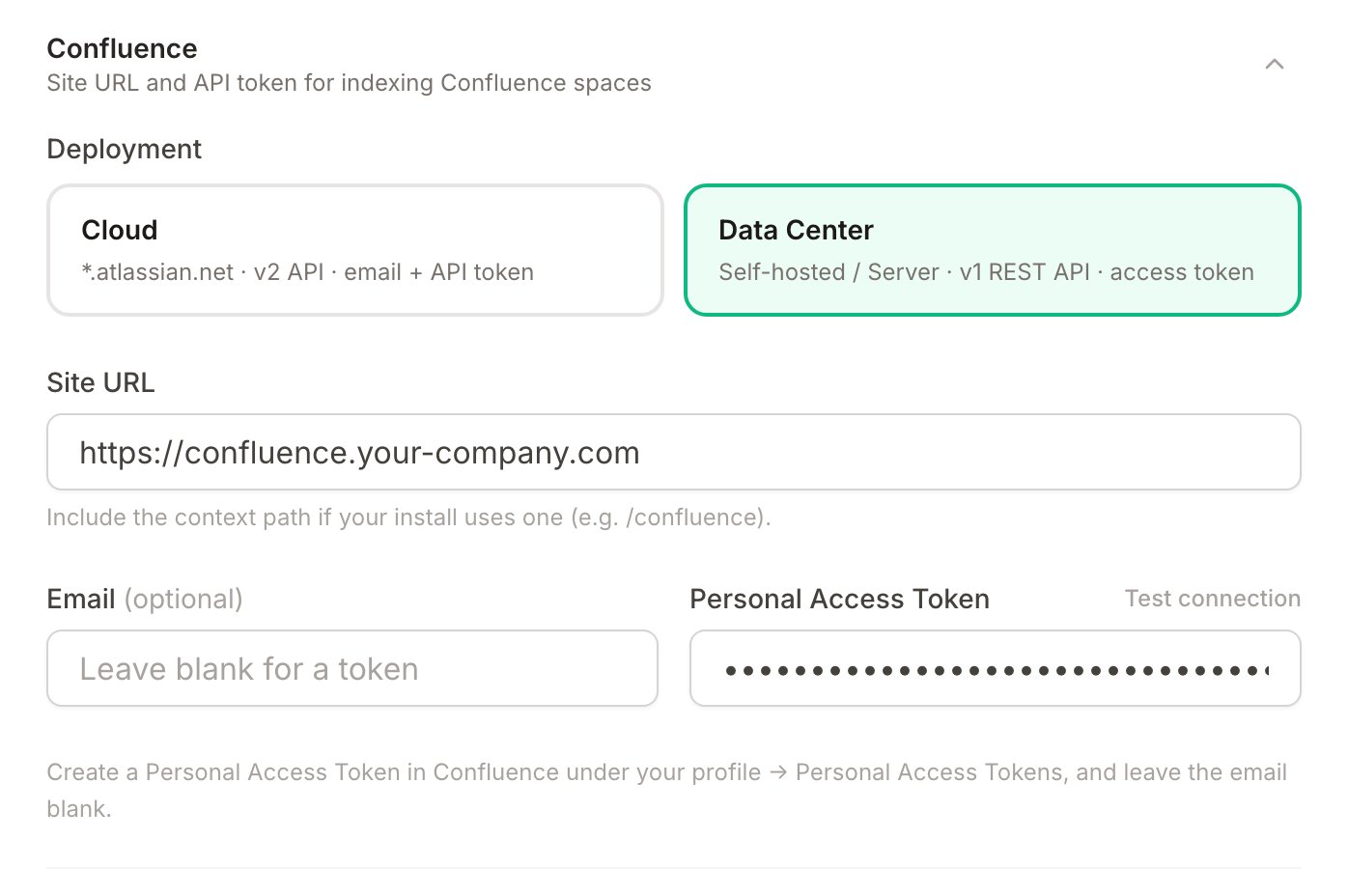
Open **Settings → Integrations → Confluence**, choose your deployment, fill in the fields, and use **Test connection** to confirm before saving.
 | Field | Value |
| ---------- | --------------------------------------------------------------------------------------------- |
| Deployment | Cloud |
| Site URL | `https://your-company.atlassian.net` |
| Email | The account email that owns the token |
| API Token | Create one at [id.atlassian.com](https://id.atlassian.com/manage-profile/security/api-tokens) |
Cloud uses the Confluence v2 REST API and authenticates with the email and API token together.
| Field | Value |
| --------------------- | -------------------------------------------------------------------------------------------------------------------- |
| Deployment | Data Center |
| Site URL | `https://confluence.your-company.com` (include the context path if your install uses one, for example `/confluence`) |
| Email | Leave blank |
| Personal Access Token | Create one in Confluence under your profile, **Personal Access Tokens** |
Data Center uses the v1 REST API and authenticates with a Personal Access Token. Personal Access Tokens require Confluence 7.9 or later. If your instance uses basic auth instead, put the username in the Email field and the password in the token field.
Point Context7 at a service account rather than a personal login, so indexing does not depend on one person's access.
## Index a space
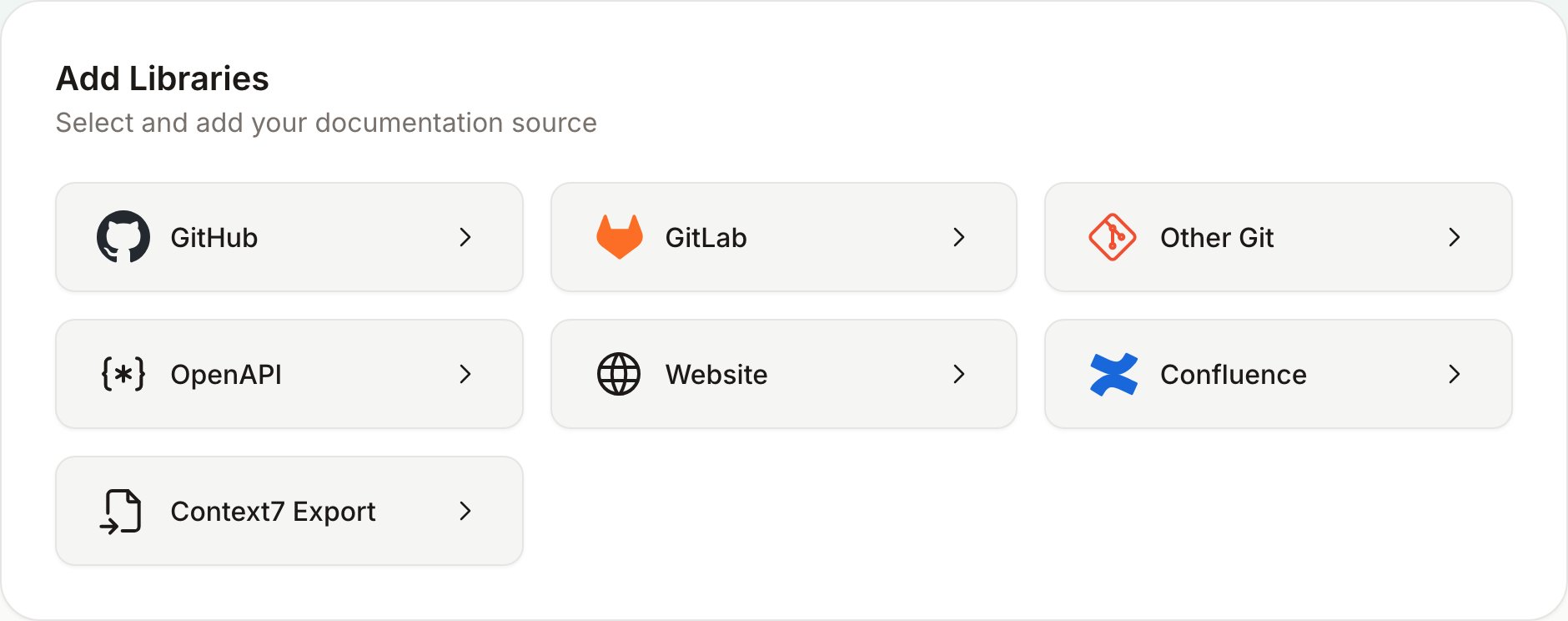
Go to **Add** and choose **Confluence**.
| Field | Value |
| ---------- | --------------------------------------------------------------------------------------------- |
| Deployment | Cloud |
| Site URL | `https://your-company.atlassian.net` |
| Email | The account email that owns the token |
| API Token | Create one at [id.atlassian.com](https://id.atlassian.com/manage-profile/security/api-tokens) |
Cloud uses the Confluence v2 REST API and authenticates with the email and API token together.
| Field | Value |
| --------------------- | -------------------------------------------------------------------------------------------------------------------- |
| Deployment | Data Center |
| Site URL | `https://confluence.your-company.com` (include the context path if your install uses one, for example `/confluence`) |
| Email | Leave blank |
| Personal Access Token | Create one in Confluence under your profile, **Personal Access Tokens** |
Data Center uses the v1 REST API and authenticates with a Personal Access Token. Personal Access Tokens require Confluence 7.9 or later. If your instance uses basic auth instead, put the username in the Email field and the password in the token field.
Point Context7 at a service account rather than a personal login, so indexing does not depend on one person's access.
## Index a space
Go to **Add** and choose **Confluence**.
 Pick a space, then choose which pages to index. The page tree mirrors the space hierarchy, so selecting a parent selects its children. Give the project a title and description if you want to override the auto-detected ones, then choose **Start Parsing**.
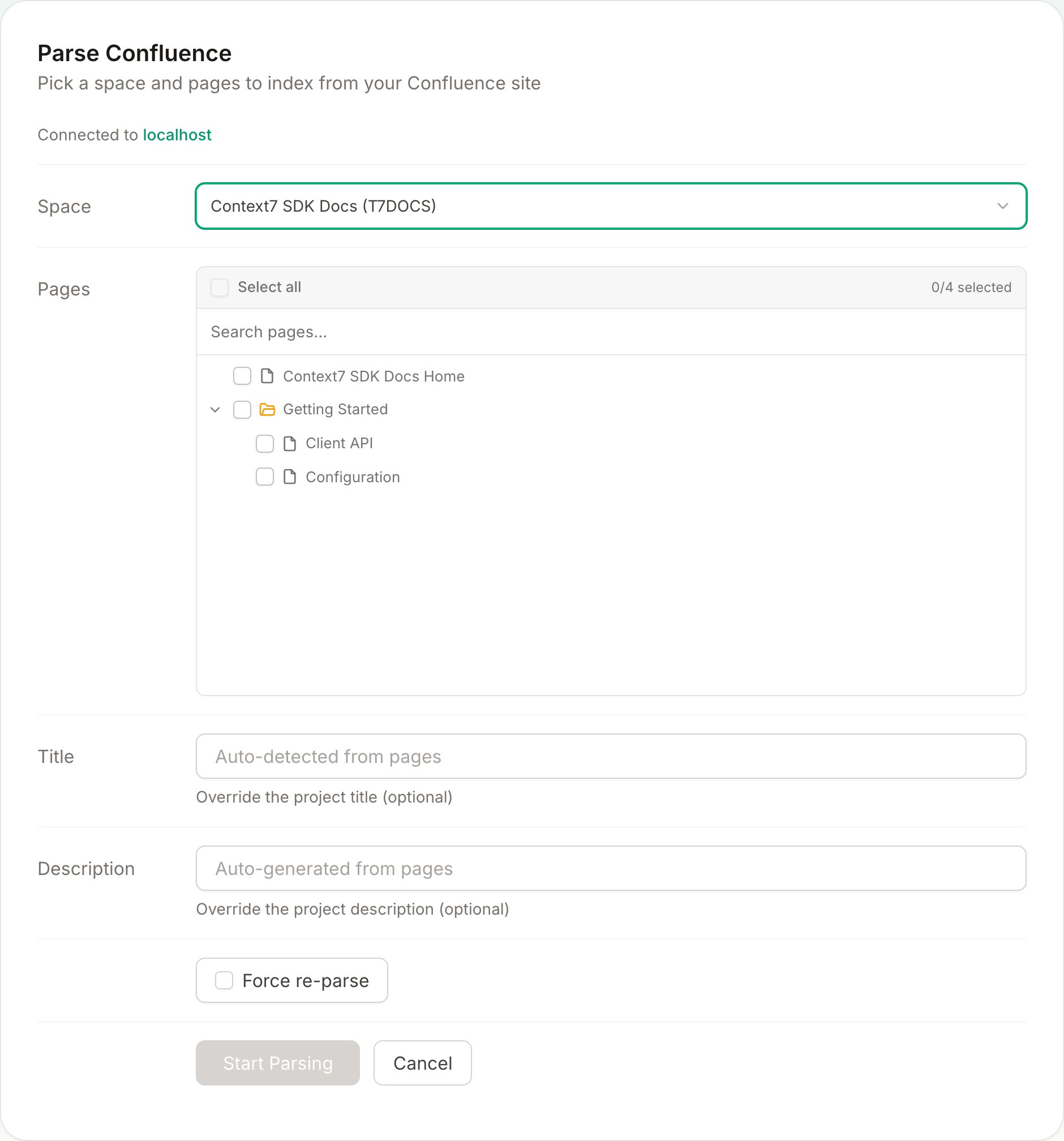 Choose the space from the dropdown. Context7 lists every space the configured token can read.
Tick individual pages, or use **Select all** to index the whole space. Use the search box to filter a large space.
Context7 fetches the pages, converts them to Markdown (code blocks, tables, and callouts are preserved), and indexes them. The project appears under your libraries when it finishes.
**Select all** indexes the whole space, so a later refresh also picks up pages added since. Selecting a specific subset pins the project to exactly those pages.
## Refresh and delete
A Confluence project behaves like any other library. **Refresh** re-indexes the space using the stored selection and the current admin token, so rotating the token in Settings updates future refreshes without editing the project. **Delete** removes the project and its indexed content.
Choose the space from the dropdown. Context7 lists every space the configured token can read.
Tick individual pages, or use **Select all** to index the whole space. Use the search box to filter a large space.
Context7 fetches the pages, converts them to Markdown (code blocks, tables, and callouts are preserved), and indexes them. The project appears under your libraries when it finishes.
**Select all** indexes the whole space, so a later refresh also picks up pages added since. Selecting a specific subset pins the project to exactly those pages.
## Refresh and delete
A Confluence project behaves like any other library. **Refresh** re-indexes the space using the stored selection and the current admin token, so rotating the token in Settings updates future refreshes without editing the project. **Delete** removes the project and its indexed content.